Free tool

Face Swap

Put one face on another photo with face swap, then download a natural looking new image in your browser.

★★★★★ 4.8 · loved by 2M+ creators
Free to trySwapped photoHD on sign-in
JPG or PNG · up to 4K

Why us

Get a believable new photo without a hard edit

Make a clean, fun result fast, with simple tools that feel easy from the first upload.

Make edits that still look like you

You get a photo that feels natural enough to share, not a clumsy cut-and-paste joke. MiFoto is built for everyday photos, so your final image can keep a real look instead of turning flat, stiff, or overworked.

Skip the learning curve

You do not need pro editing skills to get a polished result. MiFoto keeps the process simple, so you can focus on the photo you want to make instead of learning layers, masks, or complicated desktop software.

Finish the whole photo in one place

After you make the main edit, you can keep improving the same photo without bouncing between apps. Clean up the background, sharpen soft details, or retouch the portrait so the final image feels complete and ready to post.

Start free and try ideas quickly

You can test a playful idea, a social post, or a visual joke without paying for heavy software first. That makes it easy to experiment, compare versions, and keep only the photo that looks right to you.

Learn more

What to know about face swap

These sections show what a face swap tool can do, how the results look, and when it works best. You will see practical uses, simple limits, and what you can expect before you upload a photo.

face swap — topic section inline 0

Swap faces from two photos

Swap faces by uploading a clear photo of the face you want to use, then a second photo with the pose or scene you want to keep. The tool matches the face to the target shot and gives you a new edited photo to download. You get one finished image file, not a layered project, so it is easy to save and share. If you want tips before you begin, read the guide on how to face swap photo.

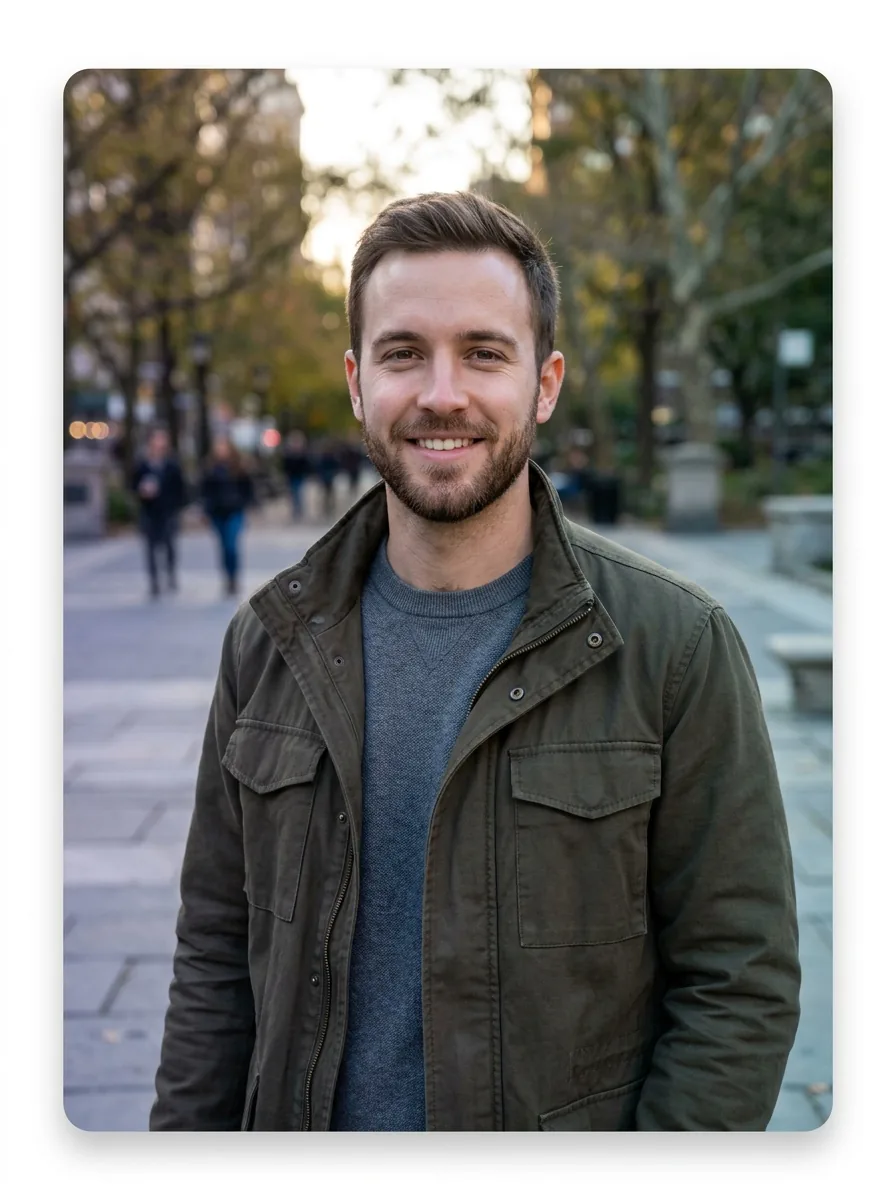
Natural swapped face on a candid outdoor photo

AI face swap for different looks

AI face swap works best when you want to test different moods, outfits, and scenes without reshooting the same photo. You can try selfies, casual group shots, travel photos, and character-style ideas, then compare which result feels most natural. This is also useful for face changing experiments before you turn the result into a profile image with an AI avatar generator.

face swap — topic section inline 2

Photo face swap without editing skills

Photo face swap is made for people who want a fast result and do not want to learn masks, layers, or manual cutouts. You upload, choose the source and target, and let the tool handle the blend. If you only need a realistic face fix instead of a full replacement, an AI face editor may be the better next step for small corrections.

Candid party photo with a realistic face swap result

Face swap online with a ready-to-share result

Face swap online gives you a simple before and after path: two input photos in, one finished photo out. A good result keeps the target pose, hair, and scene while replacing just the face so the final photo still looks believable. If you are comparing this with full-person edits, read the difference between body swap and face swap before you choose your tool.

face swap — topic section inline 4

Free face swap for quick tests

Free face swap is useful when you want to test a joke photo, preview a creative idea, or see whether two shots work together before making a final version. To swap a face well, use photos with similar angles, visible eyes, and clean lighting across both images. If you have privacy questions around people edits, check whether AI body swap is safe for a practical overview of consent and sharing.

How it works

Use the tool in 3 steps

You add a source face and a target photo, then MiFoto blends the face into the new photo for you.

Two source photos ready for a face replacement edit
1

Step 1: Upload the two photos

Add one photo with the face you want to use, then add the photo you want to place it into. Clear front facing photos usually give the most natural result.

Target photo before the face is blended into it
2

Step 2: Choose the face and target

Pick which person supplies the face and which photo receives it. The tool aligns facial features and blends skin tone, angle, and lighting to fit the target shot.

Finished photo with a naturally blended swapped face
3

Step 3: Download the finished photo

Get one edited photo with the new face placed into the target shot. You can save that final image and use it for a joke, a concept mockup, or a shareable post.

Make fun photo edits for real moments

Use it for jokes with friends, fresh social posts, themed party pics, or creative photo mashups that look clean and easy to share.

Two friends in a park with a natural face replacement edit

Friends sharing funny edits

You can put your face on a friend’s photo for a joke, a birthday post, or a group chat reply. It is a simple fit when you want a quick, playful result without learning editing tools.

Window light selfie with a clean and realistic face replacement

People testing a new profile photo look

You can try a different face on the same portrait before posting, sending, or sharing it. This helps when you want to swap faces for a playful version of a selfie while keeping the photo angle, outfit, and background the same.

Party photo edited with a believable face match on the same body

Creators making character-style edits

You can use this for memes, fan art concepts, or themed posts that need one person placed into another photo. It works well when the goal is a believable face match on a specific body, scene, or expression.

Features

Built for clean swaps without manual editing

You get natural-looking face changes, simple controls, and a clear photo result you can download and share.

Match one face to the right spot

Upload a source face and a target photo, and the tool maps facial position, angle, and scale before it makes the edit. That helps the new face sit in the right place instead of looking pasted on.

Keep skin tone and lighting consistent

The edit blends color, brightness, and shadow so the swapped face fits the rest of the photo more naturally. If you want to refine the result after the swap, you can clean up details with the AI face editor.

Preserve hair, pose, and photo framing

The tool changes the face area while keeping the original body, hair, clothing, and camera framing intact. That makes it useful when you want the output to look like the same photo, just with a different face.

Work with portraits, group shots, and casual photos

You can use selfies, headshots, couple photos, and everyday group pictures as long as faces are visible. If you want a full character change instead of only the face, the AI body swap tool is the better fit.

Download the edited photo and keep creating

After processing, you get a finished photo file with the face replaced, ready to save and share. If you want to turn that result into a stylized profile image or character look, try the AI avatar generator next.

By the numbers

Trusted by millions of everyday editors

People use MiFoto to clean up photos, sharpen blurry shots, and make polished images without complex software.

5M+

Photos edited

Edits made by people like you

2M+

Happy creators

Everyday people editing without Photoshop

4.8★

App rating

Loved by our community

Swap two photo faces and download the new photo

Upload your source photos, let the tool place the new face, then save the finished image with the face changed.

Works right in your browser
Made for simple photo uploads
Download the finished swapped photo

Face swap questions, answered

How does face swap work?
Face swap works by detecting the face in your source photo and placing it onto a target photo while matching size, angle, and skin tone. You upload the images, let the tool process them, and then download the finished edited photo if the result looks right.
Can face swap look natural on everyday photos?
Yes, face swap can look natural when the two photos have similar lighting, head angle, and image quality. Clear faces, open eyes, and simple backgrounds usually give the cleanest result, while heavy shadows or side profiles can make the blend look less realistic.
Is AI face swap free to try?
Yes, AI face swap is free to try on MiFoto. You can test the tool in your browser without learning complex editing steps, which makes it useful for quick social posts, joke images, and simple creative edits.
What is the difference between photo face swap and manual editing?
Photo face swap is faster because the tool handles detection, placement, and blending for you. Manual editing usually means cutting, masking, resizing, and color matching by hand, which takes much longer and needs more editing skill.
Can I use free face swap for memes, profile pictures, or party photos?
Yes, free face swap works well for casual uses like memes, profile pictures, birthday edits, and group photo jokes. For the best result, pick photos where the faces are fully visible and close to the same angle, so the final photo looks cleaner.
Does face swap online work on a phone as well as a laptop?
Yes, face swap online works well on both phones and laptops because MiFoto runs in your browser. A larger screen can make it easier to review small details, but the upload, swap, and download flow is simple on mobile too.
What files do I get after I swap faces?
You get a finished edited photo to download after you swap faces. The output is the completed image with the new face applied, which you can save and share like a normal photo.
Why does an AI face swap sometimes look wrong?
An AI face swap can look wrong when the source and target photos have very different lighting, sharpness, face angle, or expressions. Using a blurry selfie, covered features, strong filters, or tiny faces can also reduce accuracy and make the final photo look off.
Can I edit the result after a face changing attempt?
Yes, you can keep editing the result after a face changing attempt if you want a cleaner final photo. A common next step is fixing lighting, smoothing small skin issues, or refining the portrait with a dedicated face editing tool.
When should I swap a face instead of changing the whole person in a photo?
You should swap a face when you want to keep the original pose, outfit, and background but replace only the face. If you want a bigger change to the body, styling, or full character look, a separate body change tool or avatar maker is the better fit.

Put your face into a new photo and get a clean swapped result

Upload your photo, choose the target photo, and create a natural-looking edit you can download and share.

  • Free to try in your browser
  • No Photoshop skills needed
  • Download your finished photo after the swap
Natural swapped portrait in an everyday outdoor photo

Explore more