Free tool

Background Remover

Cut out your photo and get a clean PNG fast with our background remover, then download it ready to use.

★★★★★ 4.8 · loved by 2M+ creators
Free to tryTransparent PNGHD on sign-in
PNG · transparent · up to 4K

Why us

Get cleaner photos with less work

MiFoto helps you fix, polish, and create photos fast, so you get share-ready results without learning complex editing tools.

Finish edits without the learning curve

You get polished photos fast, even if you have never used editing software before. MiFoto keeps the process simple, so you can focus on the result you want instead of figuring out tools and settings.

Make everyday photos look ready to share

You can clean up selfies, family shots, travel snaps, and shop photos in one place. The result looks neat, natural, and usable for social posts, messages, listings, or personal keepsakes.

Fix old, blurry, or messy photos with confidence

MiFoto helps you rescue photos you would normally give up on. You can improve clarity, restore faded memories, and tidy distracting details, so more of your photos feel worth saving and showing.

Create polished results without expensive software

You do not need a paid design app or advanced skills to get a professional-looking photo. MiFoto gives you practical tools in your browser, so you can edit, enhance, and create without extra hassle.

Learn more

Using the background remover

See what this tool does best, when to use it, and what kind of photo you can save. These sections help you get a clean cutout faster and avoid common background cleanup problems.

background remover — topic section inline 0

Remove background from image fast

Remove background from image by uploading one photo and letting the tool detect the subject for you. You start with a selfie, product shot, pet photo, or food photo, and get a first cutout without tracing edges by hand. This background remover tool works right in your browser, so you can check the preview, keep the subject, and move on to your next edit.

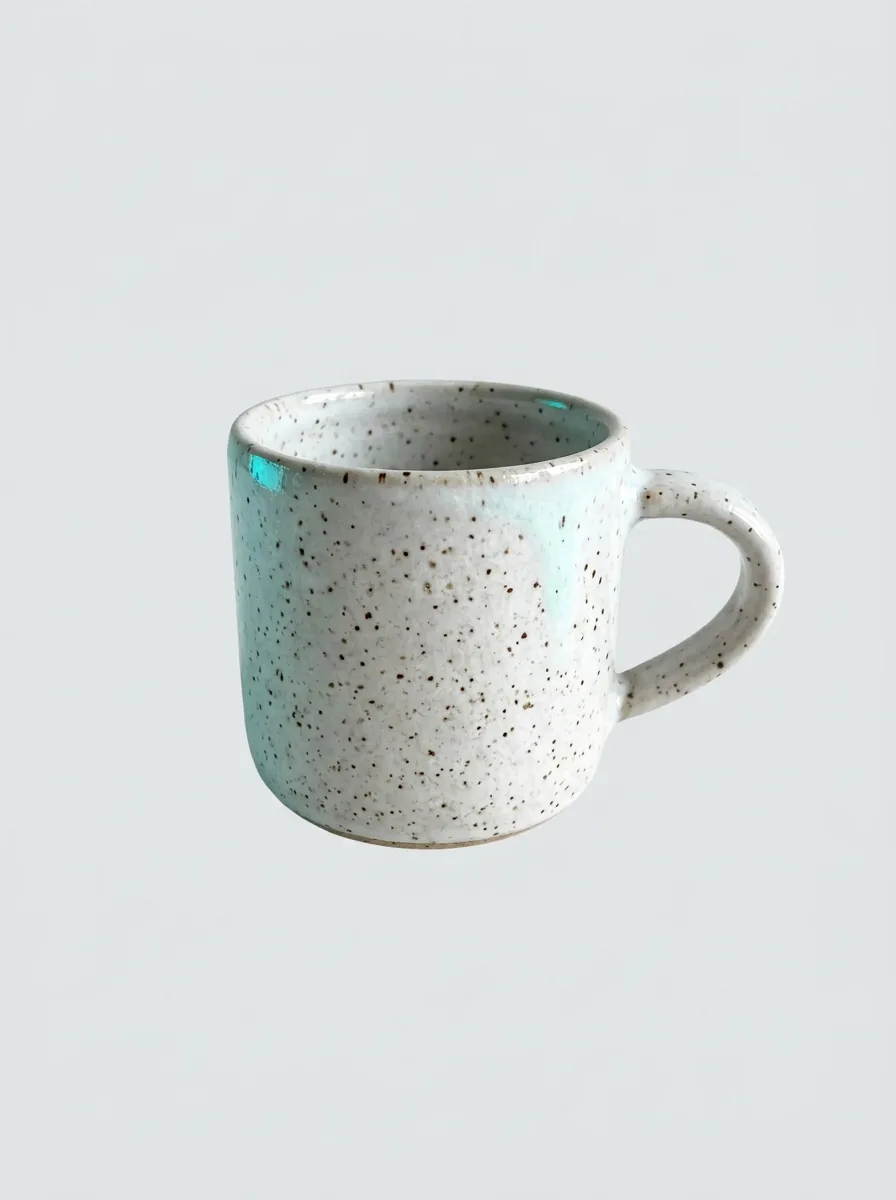
Coffee mug cutout with clean transparent background

Transparent background for shops and socials

A transparent background gives you more ways to use the same photo. Save a clean cutout for product listings, profile images, stickers, slides, or posts, then place it on white, black, brand colors, or a new scene later. If you want help changing a photo background after the cutout, MiFoto has a guide that walks through the next step clearly.

background remover — topic section inline 2

Background eraser with no manual tracing

Background eraser tools should save time, not add work. MiFoto handles the selection for you, so you do not need Photoshop skills, a pen tool, or careful brushing around hair and sleeves. The background removal happens online, free to start, and the result is easy to export when you need a quick cutout for school, work, or selling.

Man portrait with cluttered room removed cleanly

See the cutout before you download

Good results are easy to spot: the subject stays intact, the edges look clean, and the old backdrop is gone. A strong before and after often means a cluttered room becomes a neat cutout you can save as a transparent PNG for layering, or as a simple image with a solid backdrop. If a stray person or sign is still in the photo, MiFoto also covers removing objects from a photo.

background remover — topic section inline 4

What to do after the cutout

After you remove background, the next step depends on your goal. Keep the clean file for marketplaces and forms, blur the scene for a softer portrait, or place the subject into a fresh setup for ads and posts. For ideas on making a photo transparent, creating a new photo backdrop, or removing a photo backdrop step by step, MiFoto has related tools and guides that match each task.

How it works

Remove the photo background in 3 steps

Upload your photo, let the tool cut out the subject, then download a clean PNG or a photo with a new backdrop.

Original photo of a woman standing in a cluttered kitchen
1

Step 1: Upload your photo

Add any photo with a person, product, pet, or object you want to keep. A clear subject works best, even if the original scene is busy or messy.

Same woman cleanly cut out from the original kitchen scene
2

Step 2: Let the tool isolate the subject

MiFoto finds the edges for you and cuts out the person or object automatically. You get a clean subject without tracing by hand or selecting the background yourself.

Finished product photo of a sneaker on a clean white background
3

Step 3: Download the finished file

Save the cutout as a PNG if you need a transparent background, or place it on a fresh scene and export a ready-to-use JPG. For example, a shoe photo on a messy desk becomes a clean product cutout you can post on a shop page or marketplace listing.

Clean up photos for everyday moments and online selling

Use it for selfies, family photos, pets, school projects, resumes, product shots, and social posts when you want a neat cutout fast.

Woman cut out from a cluttered room onto a clean white background

Share cleaner photos

You can cut out a person, pet, or item and post a cleaner photo fast. It helps when the room behind you is messy or the background pulls focus.

Reusable water bottle isolated as a clean product cutout

Sell products with a clean cutout

You can turn a quick table photo into a simple product image that looks ready for a shop page or marketplace. This is useful when you want a neat transparent background without setting up a studio.

Man isolated from an office background for a simple graphic

Make quick school and work graphics

You can lift a subject from a photo and place it into a slide, flyer, class project, or team update. It saves time when you need a neat cutout and do not want to trace edges by hand.

Features

What this tool does well

You get clean cutouts, tidy edges, and ready-to-use photo files for shops, profiles, designs, and quick edits.

Detect the subject automatically

You get a clean cutout without tracing edges by hand. The tool finds the main subject in your photo, then separates it from the rest of the scene so you can save a neat PNG or keep editing.

Handle tricky edges cleanly

Hair, fur, and uneven outlines stay more natural when you remove background on portraits, pets, and everyday objects. This helps the cutout look usable for profile photos, product shots, and simple design work.

Export a clear cutout fast

The result is a subject with the background removed, ready to download as a transparent background maker output for stores, slides, and social posts. If you want a new scene instead of an empty one, the next step is an AI background generator.

Refine the photo after the cutout

Some photos need more than background removal. After the subject is isolated, you can soften the scene with a background blur tool or clean up small distractions with an object remover if something extra is still in the frame.

Work with real everyday photo types

This background remover tool is built for common uploads like selfies, pet photos, product shots, and casual phone pictures. It is made for simple input and clear output, so you can go from a busy photo to a transparent background without learning pro software.

By the numbers

Trusted for everyday edits around the world

People use MiFoto to clean up snapshots, product shots, portraits, and old photos without complicated software.

5M+

Photos edited

Edits made by people like you

2M+

Happy creators

Everyday people editing without Photoshop

4.8★

App rating

Loved by our community

Cut out your photo and keep a clean background

Upload your photo, let MiFoto isolate the subject, then download a transparent PNG or a photo with the new background removed.

Automatic subject cutout, no manual tracing
Works for people, products, pets, and everyday photos
Download a clean transparent PNG after the edit

Background remover questions, answered

How does the background remover work?
It automatically detects the main subject in your photo and separates it from the background. The background remover then gives you a clean cutout you can download as a transparent PNG or place on a new background. You upload, let the AI process the photo, then save the result.
Is MiFoto background remover free to use?
Yes, you can start using the background remover for free in your browser. That makes it easy to test a cutout on a portrait, product photo, or pet shot before doing more edits. You do not need advanced editing skills to get a usable result.
How can I remove background from image without Photoshop?
You can upload the photo, let the tool detect the subject, and download the cutout file. This is much faster than tracing edges by hand. If you want a step by step walkthrough, see MiFoto's guide on how to remove background from image.
Can I download a transparent background file after editing?
Yes, the usual result is a cutout you can save with a transparent background. That works well for online stores, profile photos, stickers, and design mockups. If you need extra help, MiFoto also has a guide on how to make background transparent.
What is the difference between a background remover and a background eraser?
A background remover usually works automatically, while a background eraser often suggests more manual cleanup. In practice, both aim to separate the subject from the rest of the photo. MiFoto focuses on the faster route, so you get a clean cutout with less hand work.
Which photos work best with a background remover tool?
Photos with a clear subject usually work best, especially portraits, pets, products, and food shots. A background remover tool can still help with busier scenes, but sharp edges and good contrast often produce the cleanest cutout. You can always swap the result onto a plain or styled backdrop later.
Can the background remover handle hair, fur, and small edges?
Yes, it is designed to keep tricky details like loose hair, pet fur, and product outlines more intact. Results depend on photo quality and contrast, but clear source photos usually give the best edge separation. If needed, you can run another edit after the first cutout.
What file do I get after background removal?
You get a photo with the background removed, ready to download and use. In most cases, that means a transparent PNG for easy placement on websites, listings, slides, or designs. Your before is a normal photo, and your after is the same subject with the background cut away.
Can I change the backdrop after I remove background from image?
Yes, once the subject is cut out, you can place it on a plain color, a new scene, or a branded layout. That is useful for shop images, social posts, and profile photos. For more ideas, see MiFoto's guide on how to change photo background.
Why does a background remover miss parts of my subject?
This usually happens when the subject blends into the background, the photo is blurry, or the lighting is very dark. A background remover relies on visible edges, so better contrast often improves the result. Retrying with a sharper photo or cleaner original shot can help.

Your clean cutout is ready download a photo with no background

Upload a photo, cut out the subject automatically, and save a clean PNG with the background removed.

  • Free to try in your browser
  • No manual tracing or design skills needed
  • Download a clean PNG for shops, resumes, and social posts
Clean cutout product photo with the background removed

Explore more