Free tool

AI Photo Editor

Clean up backgrounds, sharpen blur, and retouch any photo with our AI photo editor right in your browser.

  • Clean backgrounds fast
  • Remove what you do not want
  • Sharpen and restore photos

2M+ creators edit with MiFoto

AI headshot
Background removed
Colorized
AI product photo
Unblurred
AI art
4.8★ · loved by 2M+
  • 5M+
    Photos edited
  • 2M+
    Happy creators
  • 4.8★
    App rating
Powered byNano Banana 2SeedreamFLUX

Everything in one place

Your whole editing toolkit

Start with the tools people reach for most — each opens in your browser, no signup to try.

See the difference

Drag to see every edit in real time

Remove backgrounds, unblur, colorize, and retouch — the AI does the work in seconds.

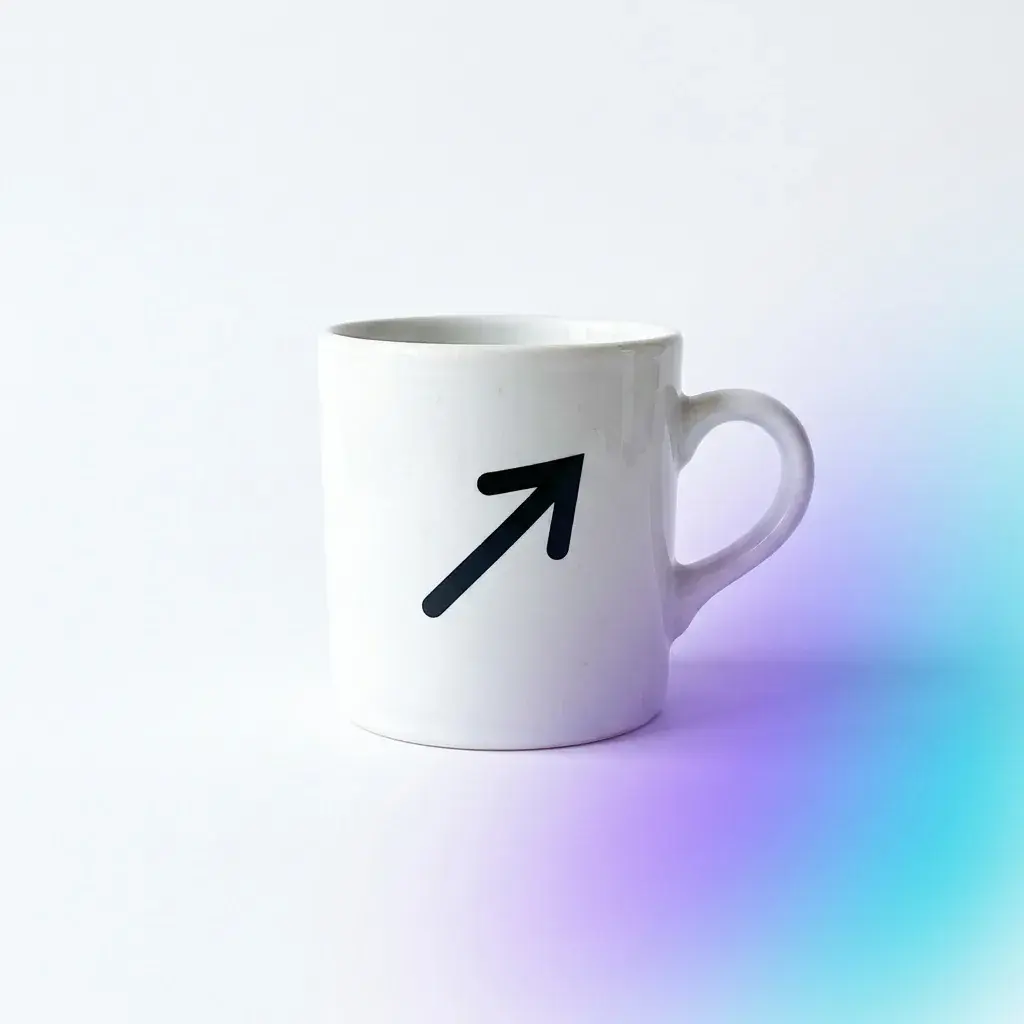
Background removedOne-click clean cutout
Object erasedRemove anything, filled in naturally
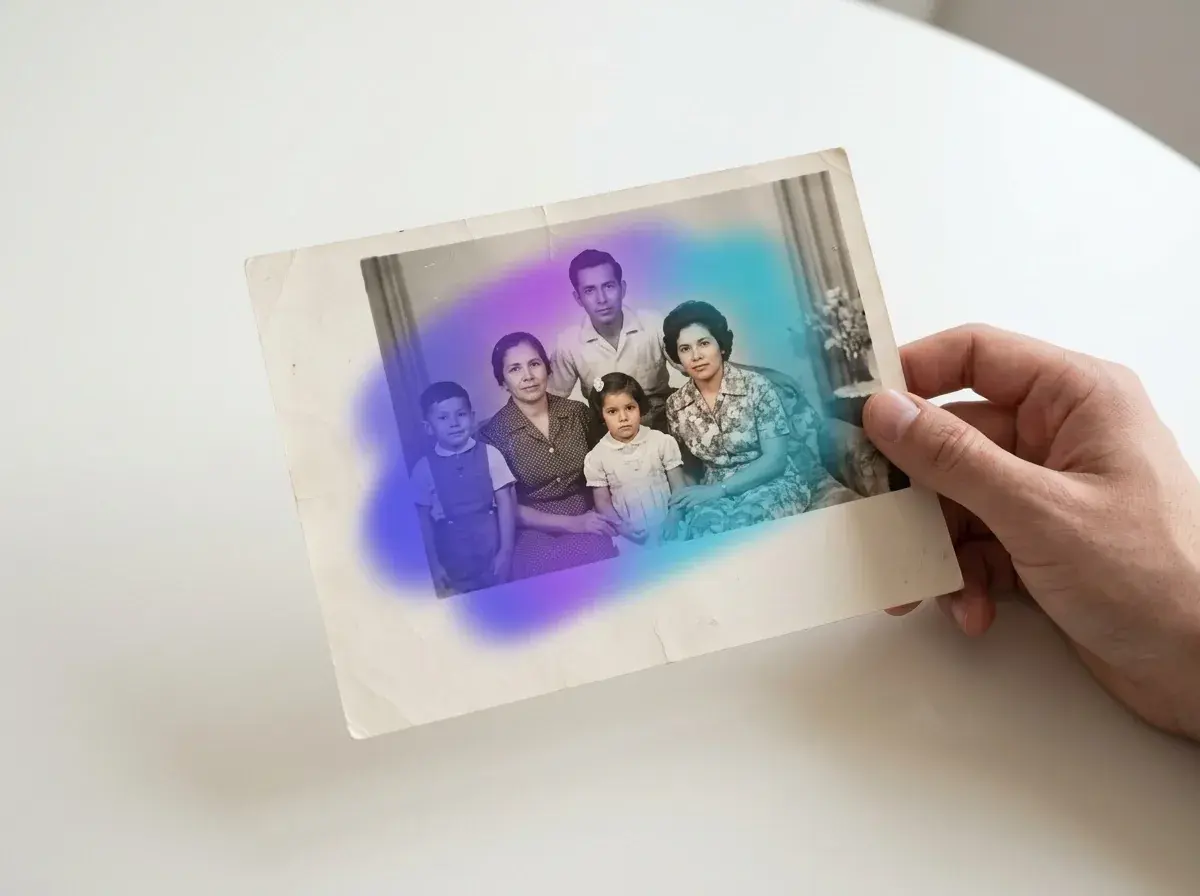
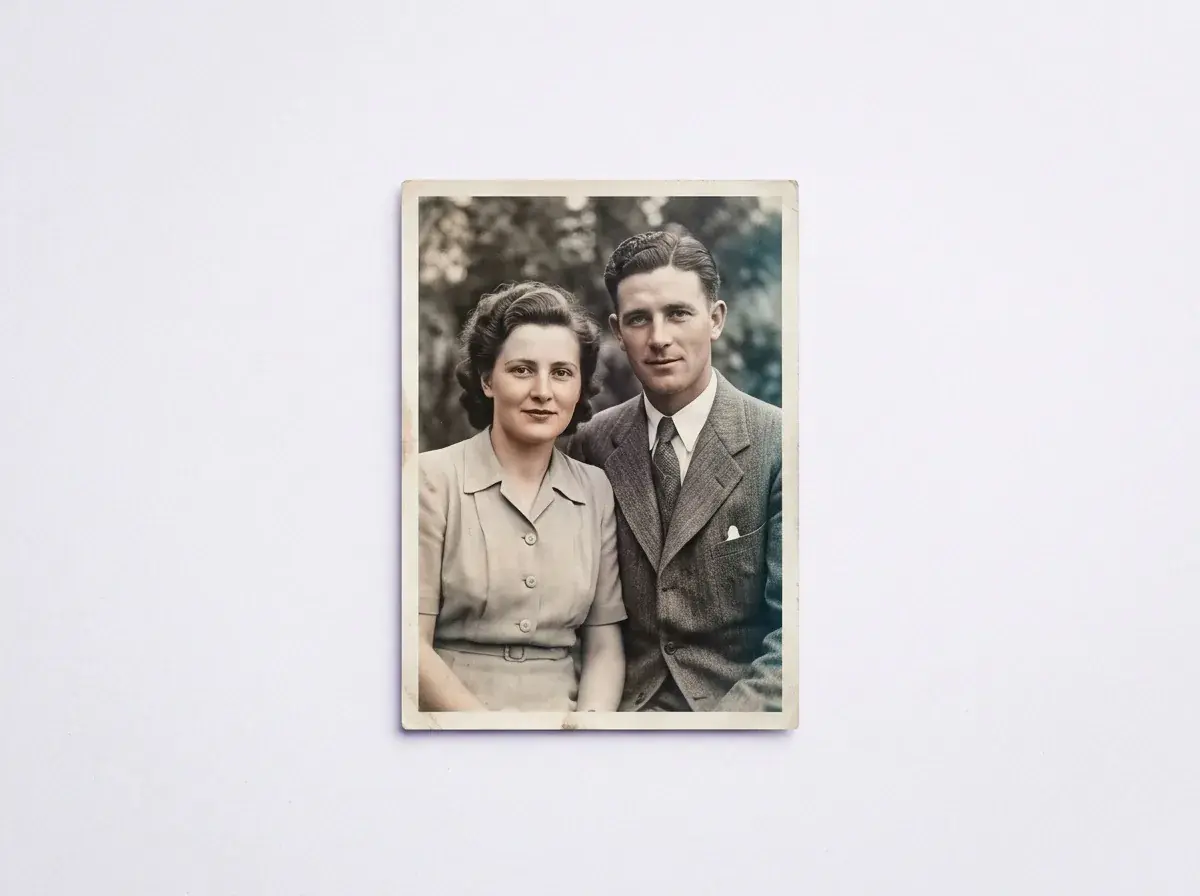
ColorizedBring old photos back to life
Sharper & upscaledUnblur and enlarge to HD

Styles

Make the kind of photo you want any moment

Edit selfies, product shots, pet photos, travel snaps, old family pictures, and AI art in one place.

Why us

Get polished photos without the learning curve

MiFoto helps you fix, clean, and create images fast, so your photos look finished and ready to share.

Save the photo you already have

You do not need to reshoot every blurry, dark, or cluttered photo. MiFoto helps you fix the shot you already took, so everyday moments, store photos, and old favorites look worth keeping.

Get results that look clean, not overdone

Your edits should look natural. MiFoto is built for real photos, so skin stays like skin, products stay true to shape, and restored images keep their character instead of looking fake or heavily filtered.

Handle your main edits together

You can remove backgrounds, erase distractions, improve quality, retouch portraits, and make new images without bouncing between apps. That means fewer steps from rough photo to finished result.

Start simple from any browser

You should not need expensive software or editing skills to get a photo you feel good about. MiFoto keeps the process approachable, so you can make strong edits on your own from your phone or computer.

How it works

Edit your photo in three simple steps

Upload a photo, choose the fix you want, and download a clean result you can use right away.

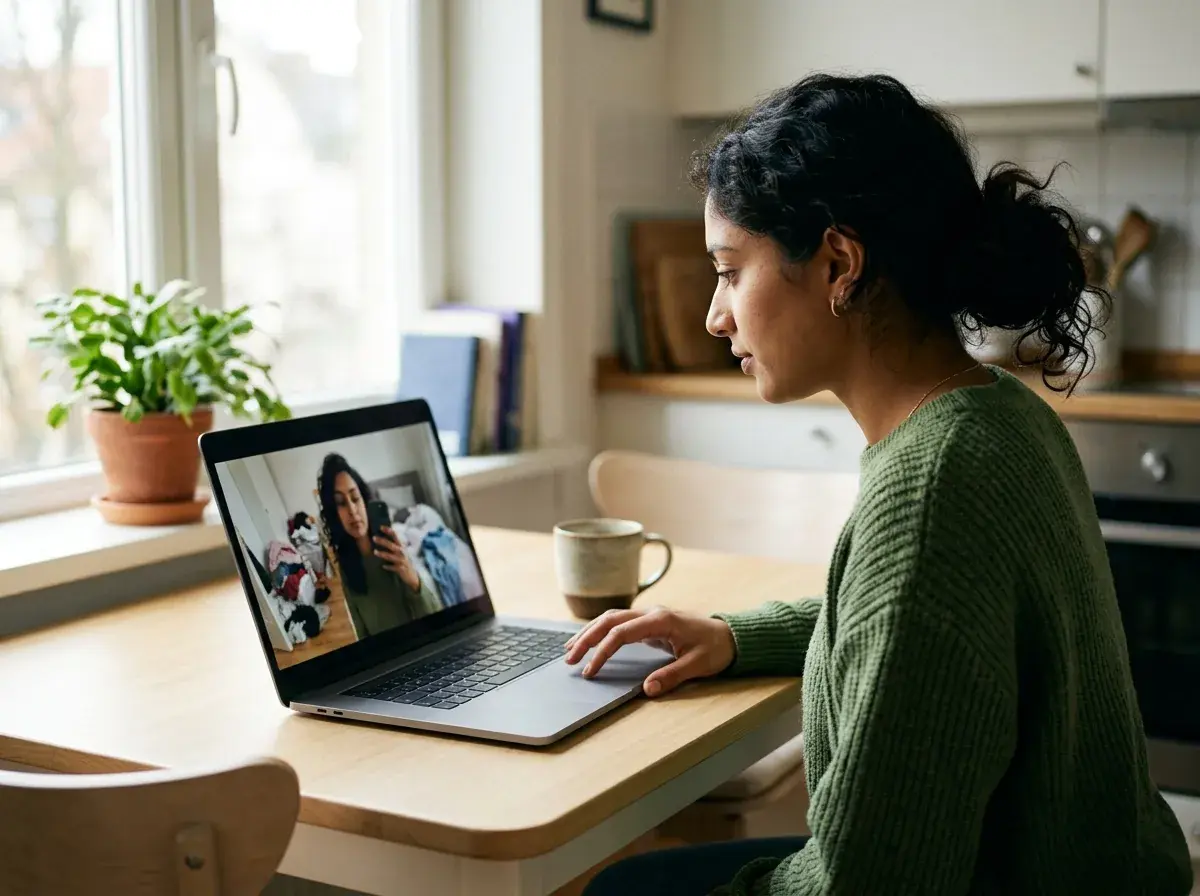
Woman holding a mug in a cluttered kitchen before editing
1

Step 1: Upload the photo you want to fix

Start with any photo from your phone or computer. A messy background, blur, old color, or small flaw is fine.

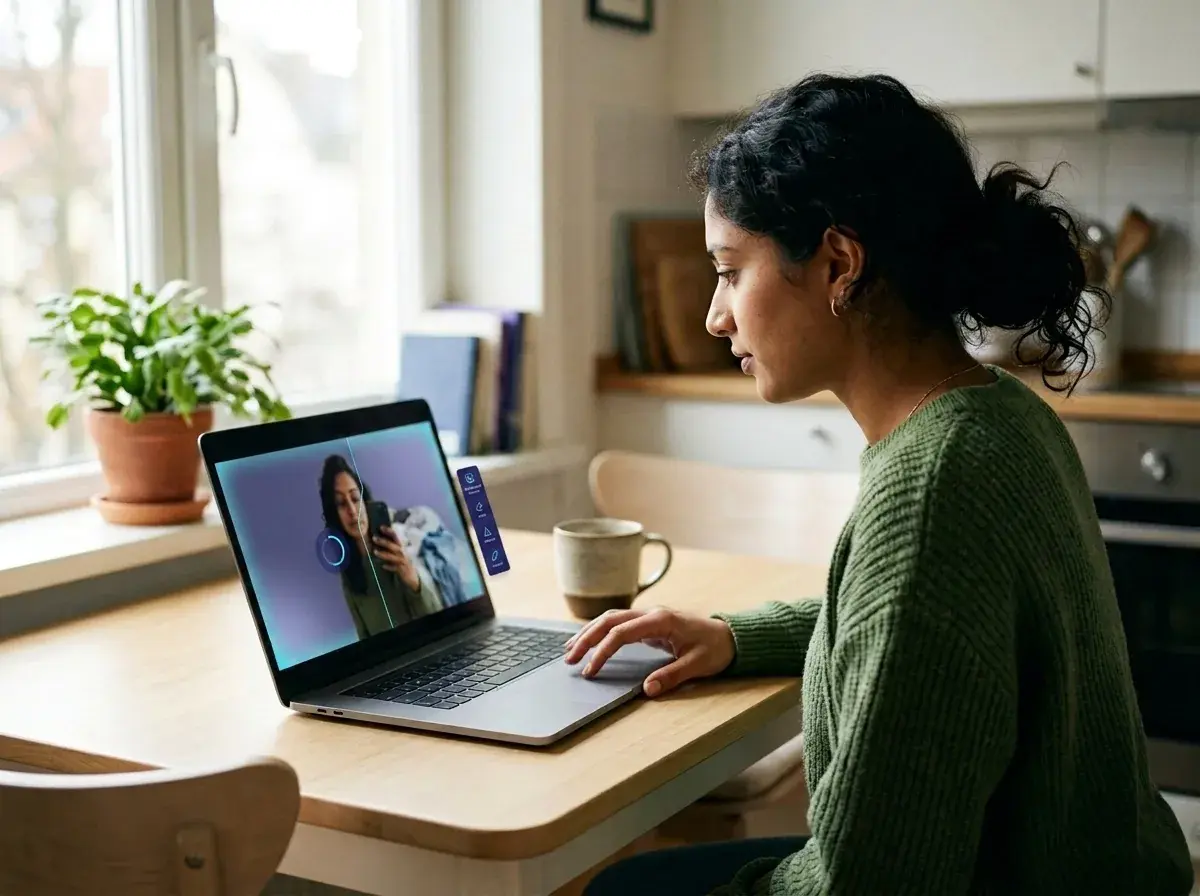
Same mug photo during editing with partial background cleanup
2

Step 2: Pick the change you want

Choose the tool for your photo, such as background cleanup, sharpening, or portrait touch-up. The edit starts automatically, so you do not need to trace or fine-tune by hand.

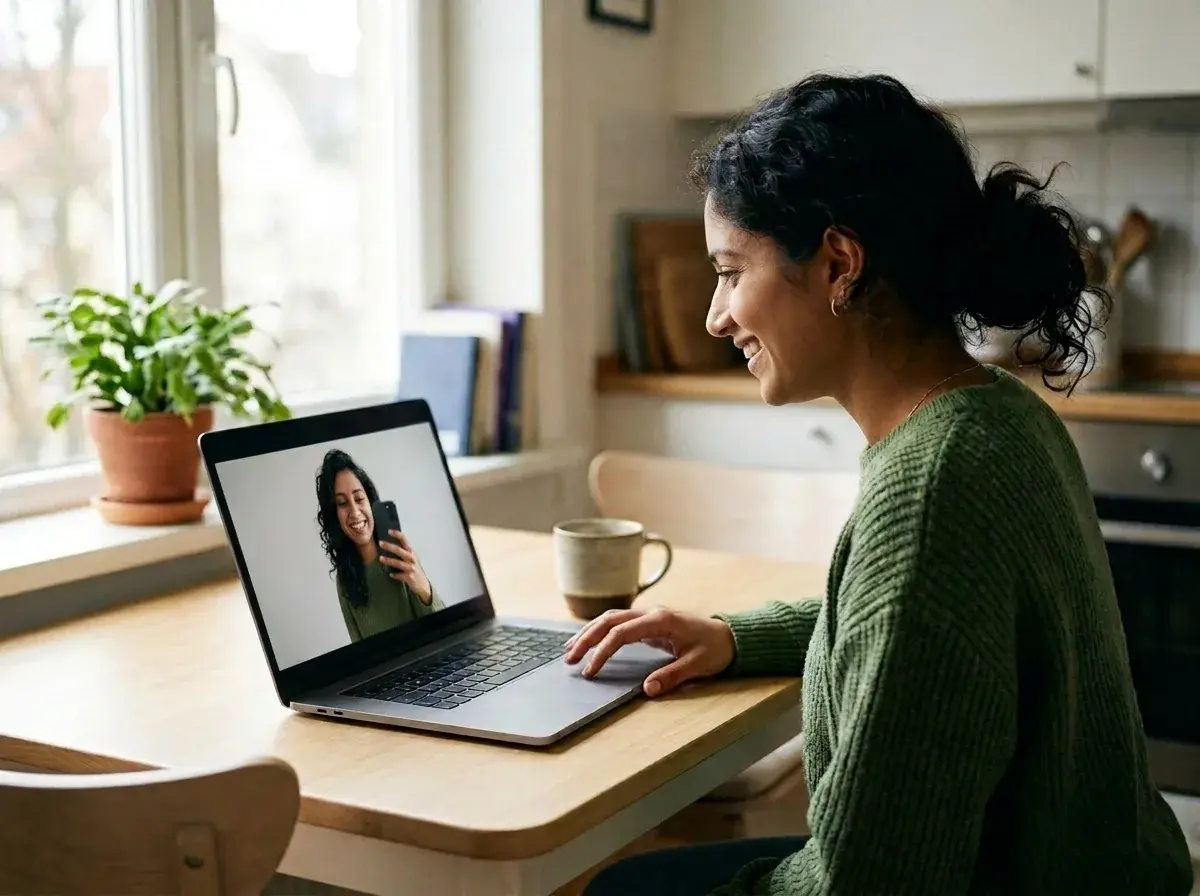
Finished edited photo of woman holding a mug on a clean background
3

Step 3: Download the finished photo

Save the final image when it looks right. You get a cleaner, sharper photo that is ready to share, post, or use for your shop.

Edit photos for everyday moments

Clean up selfies, sharpen travel shots, refresh old family photos, and make simple product images look ready to share or sell.

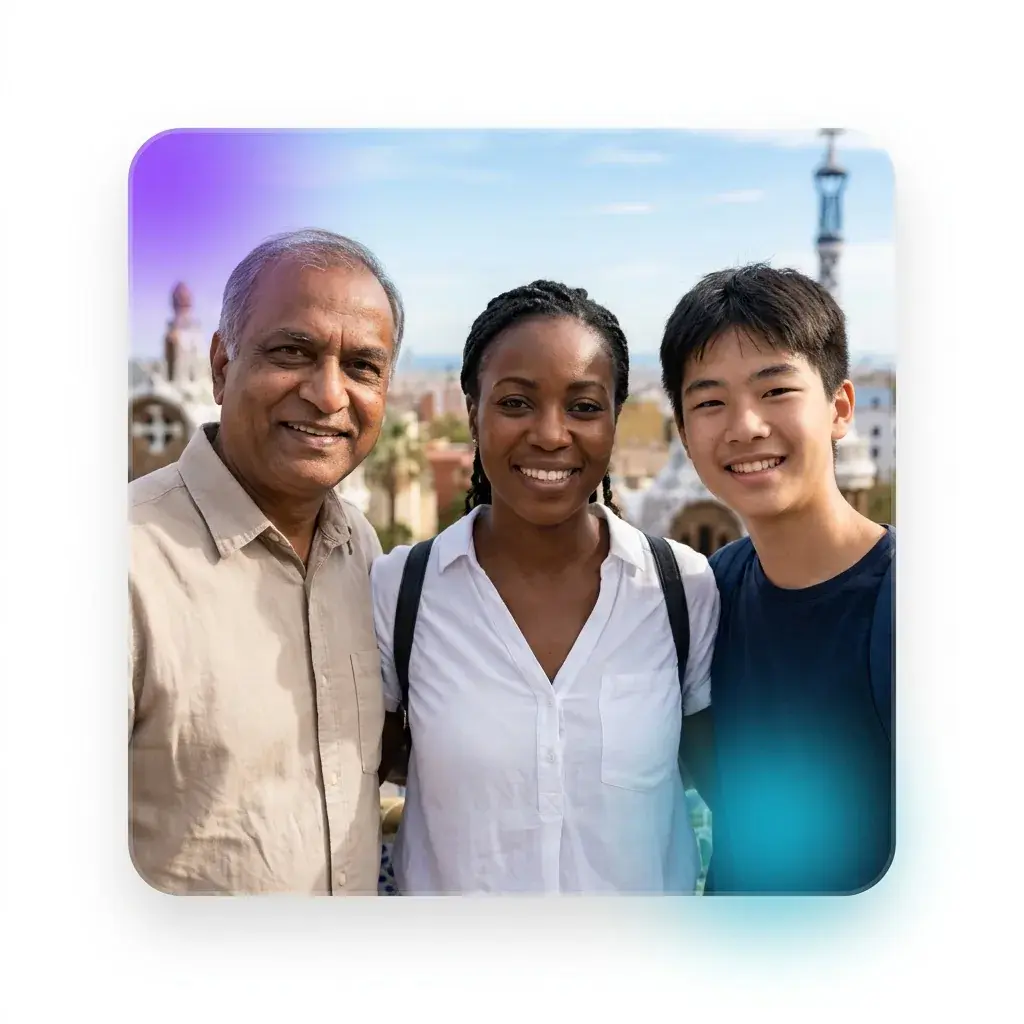
Sharpened family travel photo with a cleaner background

Fix family and travel photos

You can clean up everyday shots before you share or print them. Remove a messy background, sharpen a soft photo, or bring old vacation pictures back to life.

Natural portrait photo with gentle retouch and better lighting

Polish selfies and profile photos

You can make a portrait look fresher without heavy editing. Smooth small blemishes, fix dark lighting, and get a natural photo for social profiles, resumes, or messages.

Clean product photo of a mug on a white background

Create better photos for selling and sharing

You can make simple product and hobby photos look clean enough to post. Cut out the background, erase distractions, and turn a table snapshot into something tidy for your shop or feed.

Loved by creators

Real edits people actually keep

See how everyday users clean up backgrounds, sharpen photo quality, and fix old photos without a complicated editing workflow.

I removed a messy background from my product photo and it looked clean right away. I used it on my shop listing the same day.
NPNina P.Small business owner
My old family photo was faded and blurry, and now it looks clear enough to print. I did not need to learn any editing tools first.
MTMarcus T.Dad and family archivist
I cleaned up my selfie, fixed the lighting, and got a natural headshot I was happy to share. It felt simple from the start.
EGElena G.Job seeker
Learn more

What an AI photo editor does

This section shows the main edits you can make, from clean cutouts to sharper photos and restored memories. You will see where each tool fits, and what kind of result to expect before you upload a photo.

ai photo editor — topic section inline 0

Free photo editor for quick first edits

A free photo editor should get you from upload to result without a long setup. You add a photo, pick the edit you want, and MiFoto gives you a usable first version fast, such as a clean cutout, a sharper shot, or a simple retouch. You can also start with text when you want a brand new image instead of editing one you already have. That makes the first step feel clear, even if you have never edited a photo before.

Natural AI portrait from a casual cafe selfie

AI image editor for more styles and looks

An AI image editor helps you try different looks without rebuilding the same photo from scratch. You can turn a plain selfie into a polished headshot, make a simple product photo look cleaner, or create photo-style art from a short prompt. This is where AI tools feel useful, because you can explore different outputs while keeping the result easy to understand. The goal is variety you can actually use, not a pile of confusing options.

ai photo editor — topic section inline 2

Photo editor online from any device

A photo editor online lets you edit on the device you already have, without installing heavy software first. You open it in your browser, upload a photo, and make common fixes while keeping the process simple. That matters when you only want to remove a background, clean up a vacation photo, or make a listing image look better. It lowers the barrier for people who want a good photo, not a full design workflow.

Cleaned product photo with a simple background

Photo AI with clear before-and-after results

Photo AI works best when the result is easy to see and easy to keep. You should be able to compare the original photo with the edited version, notice the cleaner background or sharper details, and feel ready to download or share it. A good photo enhancer does not hide the point of the edit. It makes the improvement obvious, while keeping faces, products, and everyday scenes natural.

ai photo editor — topic section inline 4

What good edits should look like

Good edits look clean, not fake. A background removal should keep hair edges tidy, an unblurred photo should add detail without crunchy textures, and a portrait retouch should smooth skin without making a face look plastic. Old photo restoration should bring back color and contrast while respecting the original moment. These small signs help you judge whether an edit feels natural enough to save, post, or print.

AI photo editor questions, answered

What can an AI photo editor do?
An AI photo editor can remove backgrounds, erase unwanted objects, sharpen blurry shots, retouch portraits, restore old photos, and generate new images from text. MiFoto puts those edits in one browser tool, so you can clean up a photo without learning complex software.
Is MiFoto AI photo editor free to use?
Yes, MiFoto AI photo editor is free to start. You can upload a photo, try core edits, and see the result before committing to anything, which makes it easy to test whether the tool fits your photo editing needs.
How does an AI photo editor remove a background?
It detects the main subject in your photo and cuts it out automatically. With MiFoto, the AI photo editor gives you a clean or transparent background without manual tracing, which is useful for product photos, profile pictures, and quick design work.
Can a photo editor online work on my phone and laptop?
Yes, a photo editor online works in your browser, so you can use it on a phone, tablet, or laptop. That means you do not need to install heavy software just to remove a background, retouch a selfie, or sharpen a blurry photo.
Is MiFoto a good free photo editor for beginners?
Yes, MiFoto is a good free photo editor for beginners because the main tools are simple and direct. You upload a photo, pick the edit you want, and download the result, which is much easier than learning layers, masks, or manual selections.
What makes an AI image editor different from a regular editor?
An AI image editor automates edits that usually take longer by hand. Instead of selecting every edge or brushing over every flaw, the tool can detect subjects, remove distractions, enhance detail, and apply natural retouching with much less effort.
Can photo AI fix blurry or low-quality photos?
Yes, photo AI can improve soft or low-resolution images by adding detail and increasing size. MiFoto includes a photo enhancer that upscales up to 4x, which helps everyday snapshots look sharper for sharing, printing, or online listings.
Can MiFoto remove watermarks, text, or extra people from a photo?
Yes, MiFoto can erase unwanted objects, people, watermarks, and text from many photos. Results depend on the photo and what covers the area, but the tool is built to fill the removed space so the final image looks cleaner and more natural.
Which photo formats does MiFoto support for upload and download?
MiFoto supports common photo formats used for everyday editing, including standard web and camera image files. In practice, that means you can bring in a typical photo from your phone or computer, edit it in the browser, and download a ready-to-use result.
Can MiFoto restore old black-and-white photos and colorize faded pictures?
Yes, MiFoto can restore old photos by improving clarity and adding natural-looking color to black-and-white or faded images. It is a helpful option when you want family photos to look clearer, brighter, and easier to save or share.


Your next great photo starts with a clean, sharp edit

Fix blur, remove distractions, retouch portraits, or make a plain photo look polished right in your browser.

  • Try it at no cost
  • Works in your browser
  • No design skills needed
Polished product photo with a clean white background