Free tool

Photo Enhancer

Blurry, dull shots come back sharp and vivid when you run them through our photo enhancer.

★★★★★ 4.8 · loved by 2M+ creators

Everything in one place

Your whole editing toolkit

Start with the tools people reach for most — each opens in your browser, no signup to try.

See the difference

Drag to see every edit in real time

Remove backgrounds, unblur, colorize, and retouch — the AI does the work in seconds.

Background removedOne-click clean cutout
Object erasedRemove anything, filled in naturally
ColorizedBring old photos back to life
Sharper & upscaledUnblur and enlarge to HD

Why it matters

Better photos help you keep more worth sharing

Learning how photo quality improves gives you a faster way to rescue shots, present things clearly, and reuse images you already have.

Save photos you thought were lost

A stronger edit can rescue moments that matter, like a family snapshot, travel photo, or quick pet picture that came out soft or dim. Instead of deleting the file, you can often recover clearer detail, better light, and more usable color.

Make everyday images look clear and trustworthy

Sharper, cleaner photos help people understand what they are seeing right away. That matters for online listings, school projects, profile pictures, menus, invitations, and simple social posts where blur, noise, or poor lighting can distract from the subject.

Reuse old photos instead of starting over

When a photo can be cleaned up, you do not need to reshoot every image. That saves time on product pictures, headshots, scanned prints, and casual phone photos. Tools from MiFoto make that kind of repair more practical for everyday users.

Learn what good improvement should look like

Understanding this topic helps you spot the difference between a natural fix and an overprocessed result. Good edits keep skin, textures, edges, and lighting believable, while improving clarity enough that the photo feels polished without looking fake.

The basics

How does photo enhancer actually work?

This section explains what photo enhancement changes, which problems it can fix, and when it helps most. You will learn the basics first, then see how sharper, cleaner photos are made from everyday images.

Why improve photo quality at all?

Why improve photo quality at all?

To improve photo quality is to make a photo clearer, sharper, cleaner, and more usable for the job you need. That matters because small flaws change how a photo feels: blur softens faces, noise muddies detail, and poor lighting makes colors look flat. Good photo enhancement can help a family snapshot look frame-worthy, make a listing image feel more trustworthy, or rescue a moment you cannot retake. If you want the basics and examples, see how to enhance photo quality. The goal is not to make a photo look fake, it is to keep the scene natural while fixing what got in the way.

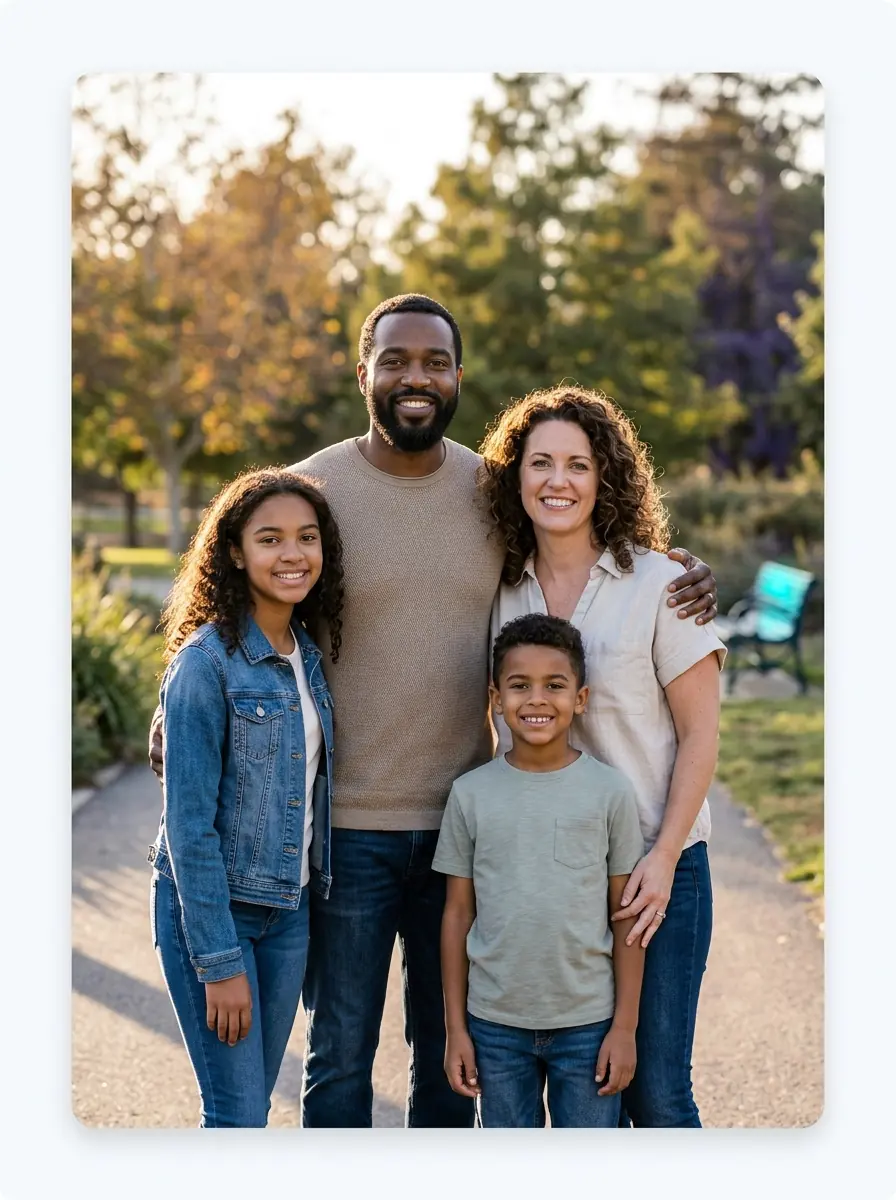
Natural candid portrait with clearer detail after enhancement

What does an AI image enhancer do?

An AI image enhancer analyzes a photo and predicts how to rebuild missing detail, improve exposure, and clean up softness or noise. In practice, it may sharpen edges, recover texture in hair or fabric, lift dark areas, and prepare a larger export without making the whole photo look crunchy. That is different from a simple filter, which often changes color or contrast without fixing the real problem. If your photo is mainly too small, an image upscaler is the more precise tool. If the issue is old fading or black-and-white damage, AI photo restoration is the better fit.

What gets tricky when you enhance photo online?

What gets tricky when you enhance photo online?

When you enhance photo online, the hardest part is knowing which problem you are actually fixing. A blurry shot needs a different method than a dark shot, and a low-resolution crop needs different help than an old damaged print. Common mistakes include over-sharpening faces, pushing colors until skin looks strange, and enlarging a photo that was never focused to begin with. If motion blur is the main issue, photo unblur is the more direct path. If you need a deeper guide before editing, read how to unblur a photo and how to increase image resolution.

Everyday selfie with natural retouch and balanced lighting

How can you get better results fast?

You get better results fast by matching the fix to the flaw, then keeping edits light so the photo still looks like your photo. Start by checking whether the image is soft, noisy, dark, faded, or poorly cropped. A practical workflow is simple: sharpen only when detail is missing, brighten only when exposure is low, and retouch only when skin or lighting needs a subtle cleanup. For portraits, a photo retoucher can smooth blemishes and balance light without changing expression. For odd dimensions after editing, an image resizer helps fit the final photo where you need it.

Where should you explore next?

Where should you explore next?

Explore next by choosing the photo problem that matches your file, because one broad enhancer rarely explains every edge case well. If you need a bigger, cleaner file for print or cropping, start with a photo upscaler workflow. If the image is an old family print, focus on color recovery, dust cleanup, and tonal repair instead of simple sharpening. If your shot is mostly soft from motion or focus, learn the limits of blur repair before enlarging it. A good rule is this: fix clarity first, then size, then color, because each step affects the next one.

How it works

How does a photo enhancer work?

A photo gets clearer when software analyzes blur, noise, detail, color, and size, then rebuilds missing detail in a controlled order.

Blurry beach boardwalk photo of a dad and daughter
1

Step 1: Check what the photo needs

The process starts by reading the photo for soft focus, pixelation, noise, poor lighting, and faded color. It also looks at edges, faces, textures, and areas where detail has been lost.

Partly enhanced beach photo with clearer faces and color
2

Step 2: Rebuild detail in layers

Next, the software improves the photo in stages. It can reduce noise, sharpen important edges, balance light, and add back texture where the photo looks too soft or too small.

Sharp finished beach boardwalk photo of a dad and daughter
3

Step 3: Output a cleaner, sharper result

The final pass blends the fixes so the photo looks natural, not crunchy or over-smoothed. You end up with a clearer photo that is better for sharing, printing, or cropping.

Make better photos for everyday moments and work

Clean up family shots, sharpen travel photos, fix store images, and polish portraits without learning complex editing.

Clear family travel photo with sharp details

Sharpen family and travel photos

You can clean up the shots that matter most, like vacation snaps, birthday photos, and old phone pictures that came out soft. This helps everyday memories look clearer before you print them, post them, or save them for later.

Natural polished selfie for a profile picture

Polish selfies and profile pictures

You can make a selfie look cleaner for social profiles, messaging apps, or a simple headshot. A better photo helps you look well lit, in focus, and natural without needing studio gear or editing skills.

Clean sharp product photo of a mug for online selling

Improve photos for selling online

You can make product shots look clean enough for resale listings, small shop pages, or marketplace posts. A clearer photo helps people see the item better, whether you are selling shoes, mugs, gadgets, or handmade goods.

Features

Everything you need for cleaner, sharper photos in one place

Fix blur, improve detail, retouch portraits, restore old photos, and remove distractions with simple AI tools built for everyday edits.

4x Detail Recovery

You get a sharper photo with cleaner edges, clearer textures, and less softness. The enhancer adds detail while scaling the file up to 4x, which helps small photos look better on larger screens and in print.

Blur and Noise Correction

Soft focus, motion blur, and low-light grain are corrected in the same pass, so the photo looks clearer without looking harsh. If your main issue is softness, the photo unblur tool is a good fit for targeted blur cleanup.

Natural Face Cleanup

Portraits stay believable while skin tone, small blemishes, and uneven light are improved. For selfies, profile photos, and headshots, the photo retoucher gives you more focused portrait cleanup without heavy smoothing.

Smart Size and Format Control

A better photo is only useful if it also fits where you need it, so export size and dimensions matter. When you need a specific width, height, or lighter file, the image resizer helps prepare the final photo for sharing, stores, or documents.

Automatic Scene Analysis

The system reads faces, edges, texture, and lighting before it adjusts the photo, so different problems are handled with different fixes. That means a blurry travel shot, a dark phone photo, and an old scan do not all get the same treatment.

By the numbers

Made for everyday edits that look clean and sharp

From quick touch-ups to full before-and-after fixes, people use MiFoto for fast results across portraits, products, old photos, and more.

5M+

Photos edited

Edits made by people like you

2M+

Happy creators

Everyday people editing without Photoshop

4.8★

App rating

Loved by our community

Fix blur and low quality in your photo

Apply the same core improvements covered above, from sharper detail to cleaner lighting and clearer faces, on your own photo.

Sharper detail in a few taps
Natural results on portraits and everyday shots
Works right in your browser

Photo enhancer questions, answered

What does a photo enhancer actually do?
A photo enhancer improves a photo by fixing common quality problems such as blur, noise, low resolution, dull color, and weak contrast. A good photo enhancer uses AI to add detail carefully, so the result looks clearer and more natural instead of oversharpened.
How does photo enhancer work on blurry or low-quality photos?
A photo enhancer analyzes the photo, detects soft edges and missing detail, and then rebuilds clarity where it can. Results are usually best on mildly blurry, compressed, or small photos, while extremely damaged files may improve but not return to perfect original quality.
Can a photo enhancer improve old family photos?
Yes, a photo enhancer can often make old family photos look cleaner, sharper, and easier to share. If the photo is faded or black and white, an AI photo restoration tool is the better next step because it focuses on repair and color recovery as well as clarity.
How can I improve photo quality without editing skills?
You can improve photo quality by starting with one issue at a time, usually blur, low resolution, or poor lighting. Automatic tools work best for beginners because they handle sharpening, upscale, and cleanup for you, and the related guide on how to enhance photo quality explains what to fix first.
What is the difference between an AI image enhancer and a basic filter app?
An AI image enhancer tries to rebuild detail and correct quality problems, while a basic filter app mainly changes the look through color, contrast, or effects. If your photo is soft, pixelated, or noisy, enhancement is usually more useful than adding a style filter.
Can I enhance photo online instead of downloading desktop software?
Yes, you can enhance photo online with browser-based tools, which is easier for quick fixes and casual use. Online editing is especially handy when you want to sharpen a selfie, clean up a product shot, or test a few versions without learning complex software.
Will photo enhancement fix every blurry image?
No, photo enhancement helps a lot, but it cannot fully recover detail that was never captured. For stronger blur, a dedicated photo unblur tool is the best match, and the guide on how to unblur a photo can help you judge when sharpening alone is not enough.
What file types work best with a photo enhancer?
JPEG and PNG are the most common formats and usually work well for everyday enhancement. If you plan to resize after editing, an image resizer helps keep the final file practical for email, social posts, listings, or print without making the photo unnecessarily heavy.
When should I use a photo upscaler instead of general enhancement?
Use a photo upscaler when the main problem is size and resolution, such as a small image that looks soft on a larger screen or in print. If you want more detail at a bigger output size, the article on how to increase image resolution gives a useful overview of what upscaling can and cannot do.
Can a photo enhancer help portraits look better without making skin look fake?
Yes, a good photo enhancer can improve portraits by balancing detail, light, and texture while keeping skin natural. If the main goal is smoothing blemishes or refining a headshot, a photo retoucher is the better tool because it focuses on faces instead of overall photo quality alone.

Make your blurry photo clear and sharp

Upload a soft, low-quality photo and get back a cleaner, more detailed result you can share, print, or keep.

  • Free to try in your browser
  • No editing skills needed
  • Works for selfies, old photos, and everyday shots
Sharpened family photo with clearer detail and natural color

Explore more